User guide
HolmesPortfolio Forms
How to build a form, put it on a page, and handle what people send in. Work through the quick start first, then use the rest as a reference.
Overview #
A form is a set of fields arranged on one or more pages. You build it in the visual editor, then place it on any page or post with a shortcode or a block. When someone submits it, the plugin can email the answers to one or more people, show the person a thank-you message, and keep a copy in Entries.
Forms follow the GOV.UK Design System by default, so they look consistent and work with a keyboard and a screen reader. You can switch to Bootstrap or to your own theme's styling in Settings.
A fresh install starts with four ready-made forms — a Simple enquiry form, a Freedom of Information request, a Subject Access Request and a Make a complaint form. Open any of them to see how the pieces fit together, or copy one as a starting point. See The forms you start with.
- Forms → Add New. Drag fields from the left onto the page.
- Click a field to set its label, whether it's required, and its error messages.
- Add an Email action so the answers reach you, and a Submit message for the visitor.
- Save. Copy the shortcode. Paste it into a page.
Quick start #
Build a simple enquiry form
- Go to Forms → Add New and give the form a title at the top.
- From the Inputs group on the left, drag Text onto the page. In the panel on the right, set the label to Full name and tick Required.
- Drag another Text field. Label it Email address, set Input mode to Email, and tick Required.
- Drag a Text area. Label it Your message and tick Required.
- From Controls, drag a Navigation button. Leave its action as Submit.
- Drag an Email action. In To, type the address that should receive enquiries. In the body, type a line then click [all-fields] in the token bar.
- Drag a Submit message. Write something like “Thanks [name], we’ll be in touch.”
- Click Save and continue, then copy the shortcode shown on the Forms list.
Stuck on what a setting does? Click the ? next to it — see The ? help dots.
Put a form on a page #
Every form has a shortcode. Find it on the Forms list, or on the builder screen after the first save.
[hpf_form id="123"]In the block editor you can instead add the HolmesPortfolio Form block and pick the form from a dropdown — no id to copy. The form renders the same either way.
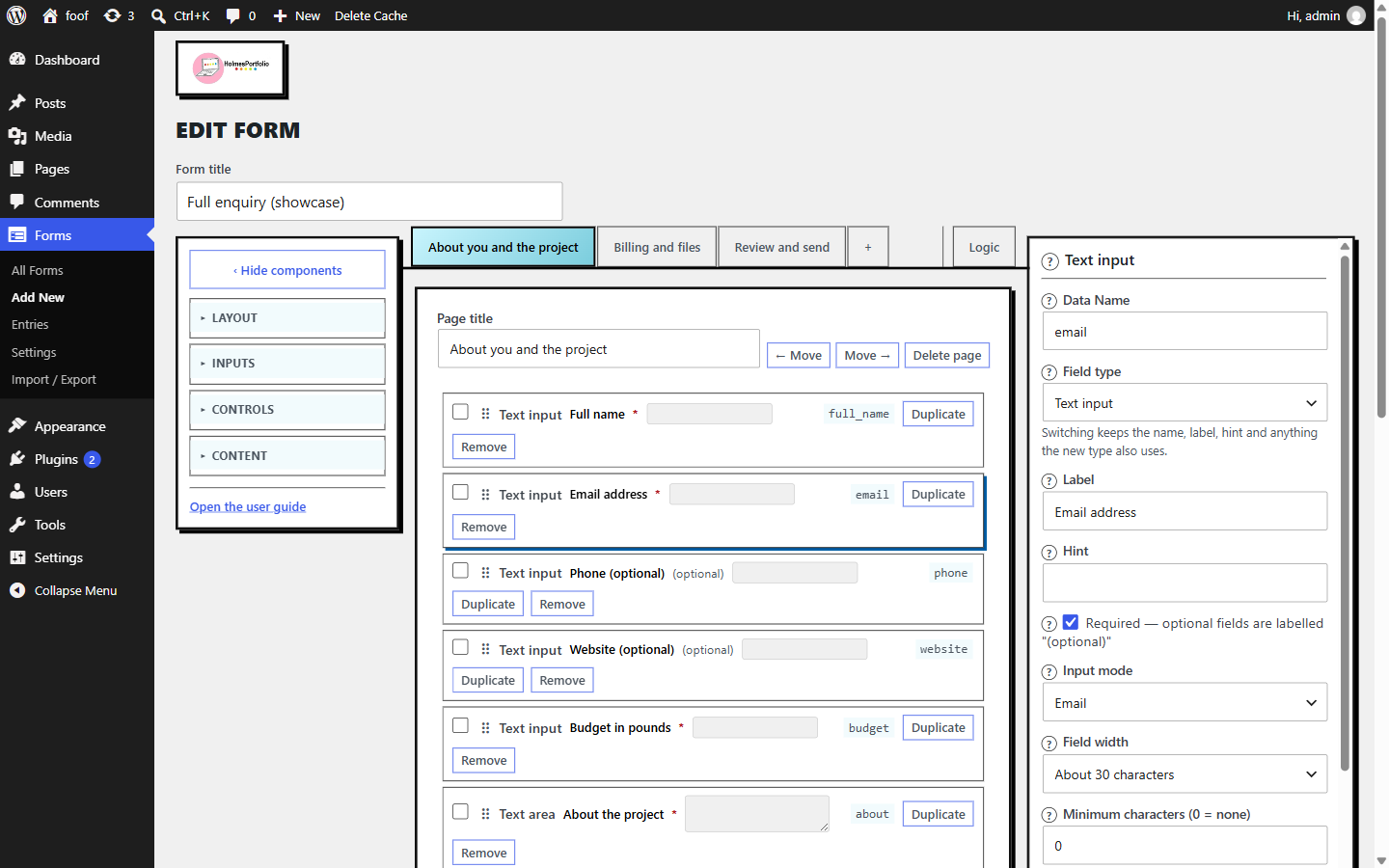
The builder screen #
| Part | What it's for |
|---|---|
| Palette (left) | The field types, in four groups: Layout, Inputs, Controls, Content. Drag one onto the page, or click it to drop it at the end. Collapse the palette with the ▸ Components button when you need more room. A link to this guide sits at the foot of the palette. |
| Page tabs (top) | One tab per page, with a + to add another. Drag a field onto a tab to move it to that page. |
| Canvas (middle) | The fields on the current page. Drag to reorder. Click a field to edit it; click again to close. |
| Options panel (right) | Everything about the selected field. The Field type dropdown at the top swaps this field for another type, keeping the name, label, hint and anything the new type also uses. See common options and each field type below. |
| Logic tab | Computed variables, page show/hide rules, and the front-end debugger switch — turn it on and the published form shows the recorded values and errors page by page, but only to logged-in users who can edit forms. |
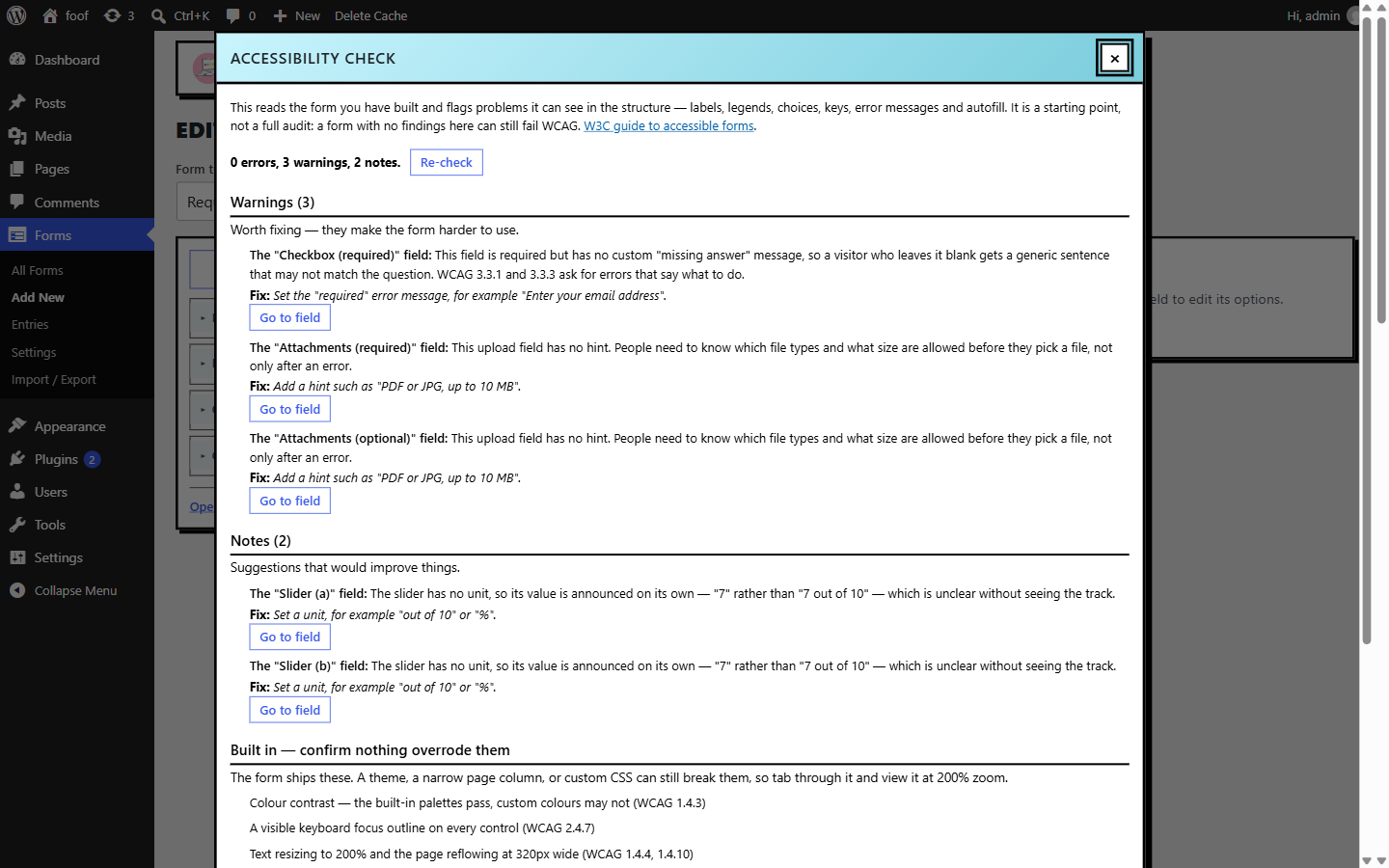
| Accessibility check (bottom) | A running count of build problems. Click it for the list. See Accessibility check. |
| Save bar (bottom) | Save and continue stays in the builder; Save returns to the list. Undo / Redo are beside them. |
Select two or more fields and save them together as a named preset to reuse on other forms.
The ? help dots #
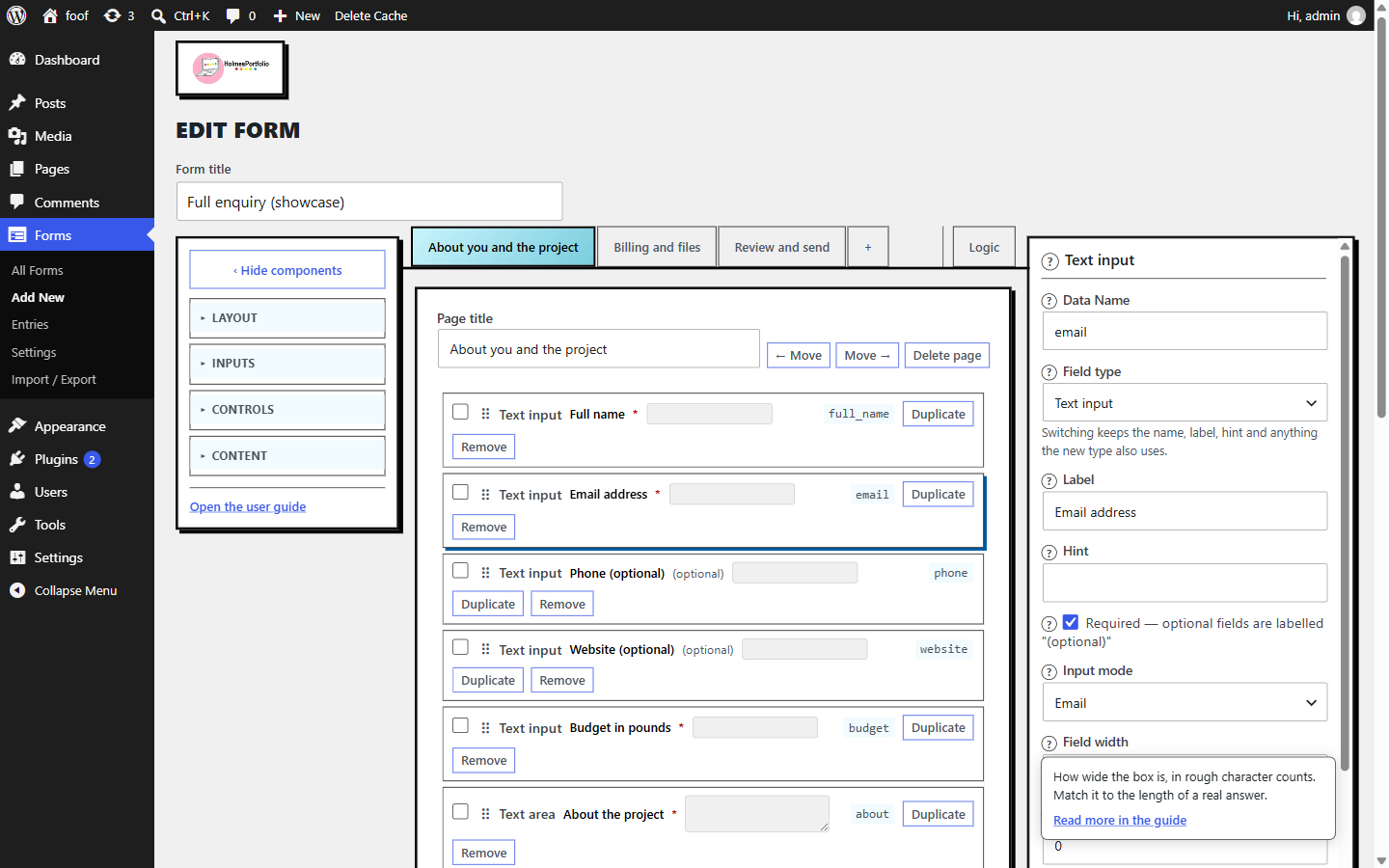
Every field and every setting in the builder has a small ? to its left. Click it for a one-line explanation, plus a Read more in the guide link that opens this page at the part that covers it. There is one on the Computed variables heading too.
The Read more links open the online user guide at holmesportfolio.co.uk/holmesportfolio-forms. The ? dots show their one-line text with or without a connection.
Fields #
Every field shares the options in Every field's common options. The tables below cover only the settings specific to each type.
Text #
A single-line box. Use the input mode to collect an email, phone number, web address or number.
| Option | What it does |
|---|---|
| Input mode | Text, Email, Telephone, Web address or Number. Sets the on-screen keyboard on phones and the check applied on submit. Choosing Email also sets Browser auto-fill to Email for you. |
| Minimum / maximum characters | Length limits. Leave at 0 for no limit. |
| Must match (regular expression) | A regular expression (no slashes) the answer has to match — for example ^[A-Z]{2}[0-9]{6}$. Give it a clear “pattern” error message. |
| Must match another field | Blocks submit unless this box is typed identically to another field you pick. The usual use is a “confirm email” box. See the tutorial in Confirm a field. |
Text area #
A multi-line box for longer answers.
| Option | What it does |
|---|---|
| Rows | How tall the box starts. The visitor can drag it larger. |
| Minimum / maximum characters | Length limits. |
| Word limit | Shows a live “words remaining” counter and rejects anything longer. |
Radio buttons #
Pick one from a short list. The list is a group, so the Label becomes its legend — always fill it in.
| Option | What it does |
|---|---|
| Options | One row per choice. The first box is the text shown; the second is the stored value (optional — it copies the text if left blank). |
| Layout | Stacked, or side by side when there's room. |
| Describe with… | Per choice, links that choice's input to an alert field so screen readers read the extra note. |
| Pre-select from the query string | The form checks the page's query string; if an option's query string match text (or its stored value) appears in it, that option is chosen. The query string is kept for the whole form, so it still works on later pages. See Pre-fill from the query string. |
Checkboxes #
With no options, it's a single yes/no tick (good for “I agree”). Add options and it becomes a “choose any” list.
| Option | What it does |
|---|---|
| Options | Add choices to make it multi-select. Remove them all for a single box. |
| Minimum / maximum choices | How many the visitor must / may tick. |
| Layout | Stacked or side by side. |
| Pre-select from the query string | Same as radio buttons — see Pre-fill from the query string. |
Dropdown #
Pick one from a longer list. Options work the same as radio buttons, including Pre-select from the query string. Set a field width to stop a long list stretching the box.
Slider #
A number chosen on a track, with a matching number box. A slider always has a value, so “required” does nothing for it.
| Option | What it does |
|---|---|
| Minimum / Maximum | The ends of the track. |
| Step | How far each nudge moves. |
| Unit | Read out after the value — “7 out of 10”, “50 %”. Set one so the number makes sense on its own. |
Date #
Three boxes — day, month, year — following the GOV.UK pattern.
| Option | What it does |
|---|---|
| Format | The order of the boxes: day / month / year, month / day / year, or year / month / day. |
| Allowed dates | Any date, past only, past or today, future only, or future or today. Use past only for a date of birth. |
| This is a date of birth | Lets a browser offer to fill it from a saved profile. |
| Default value | Fills the boxes when the form opens; the visitor can still change it. Understands today, an offset such as today + 7 days / today + 20 workdays (also weeks, months), or a plain date like 2026-01-15. |
| Check against another date | Compare this date to another date field: on or after it, on or before it, at least N days after it, or within N days of it. Give it a “compare” error message. See Working with dates. |
Address #
Line 1, optional line 2, town, optional county, and postcode. Line 1, town and postcode are required once anything is typed, and the postcode is checked against the UK format. After the visitor fills it in they can press Save address to collapse it to a read-only summary, with a Change address button to reopen it.
| Option | What it does |
|---|---|
| Include address line 2 | Show or hide the second line. |
| Include county | Show or hide the county box. |
| This address is | The person's own, a billing address, a delivery address, a business address (kept in its own autofill group), or “don't offer autofill”. |
File attachments #
Drag-and-drop or browse for files. Files are attached to the email only — they are never saved on the server or in Entries. The first time you add this field the builder shows a short note about handling uploads safely; tick “don't show this again” once you have read it.
| Option | What it does |
|---|---|
| Accepted file types | Any combination of PDF, JPEG, PNG and BMP. Each upload is checked by its real contents, not just the file name, so a renamed program or script is refused. |
| Maximum size (MB) | Caps each file and the total of all of them. |
| Maximum files | Up to five. |
Handling uploads safely
An accepted file type is not the same as safe contents — a genuine PDF or image can still carry something harmful, and checking and handling what people send is your responsibility as the site owner. Any email that carries uploads ends with a short line reminding whoever receives it to scan the files and only open ones they were expecting. On each email action you can turn Attach files uploaded through the form off — useful for a copy sent back to the person who filled in the form. Route form mail through a gateway that scans attachments (Microsoft 365 and Google Workspace both do) and keep readers patched.
Content & controls #
Alert / notice #
A block of text on the page — guidance, a warning, or something to agree to. Basic HTML is allowed in the text. It is read out to screen readers along with the fields.
| Option | What it does |
|---|---|
| Label (internal) | A name used in the builder and entries only — the visitor never sees it. |
| Style | Notification banner, Hint text, Warning text or Error message — the GOV.UK notice styles. |
| Add a confirmation tick box | Turns the notice into something the visitor must accept before continuing. Give it a “not confirmed” error message. |
Built-in presets
Three presets ship with the plugin and can't be deleted:
- Privacy notice and Terms and conditions — each is one alert with its “confirm you have read this” checkbox turned on, so the visitor can't submit until they tick it. Both carry placeholder wording you must replace: the builder shows a red reminder on the alert, and the words “replace before publishing” appear in the text. Change the text and the example.com link before the form goes live.
- Customer contact — a ready-to-use name, email and phone group, nothing to change.
Pick one from the Find a preset… box under the field list and press Insert. Whether each built-in appears there is set once for the whole site in Settings → Presets. A confirmed alert shows as Yes in the answers summary, emails and the CSV export.
Hidden field #
Not shown to the visitor, and nothing about it is written into the page — the value is worked out on the server at submit and included in the entry, the emails and the answers summary. Use it to record where an enquiry came from, to copy an answer, or to calculate something.
| Value comes from | What it does |
|---|
Navigation button #
One button component that does different jobs by its action: Continue to the next page, Back to the previous one, or Submit the form. A Back button appears on its own whenever there is a previous page, so you rarely need to add one. Leave the label blank to use the default for the action.
Email action #
Sends an email when the form is submitted. Add as many as you need — each one on an in-scope page fires. Mail goes out through WordPress's wp_mail(), so how much actually gets delivered depends on your host and mail setup, not the plugin. See Emails for the detail.
| Option | What it does |
|---|---|
| Name (admin only) | A label for this action in the builder and logs. Not shown to the visitor. |
| To / CC / BCC | Real addresses, or a chip that inserts an email the visitor typed into a field. Recipients come only from here, never from a token a visitor could set. |
| From name | The sender name. Falls back to the form's title, then the site name. |
| Subject | Plain text. Tokens like [name] and [reference] are filled in. |
| Attach files uploaded through the form | On by default. Turn it off so this action sends without the uploads — typically a copy back to the person who filled in the form. When it is on and the submission included files, the email ends with a short safe-handling line for the recipient. |
| Body format | HTML or plain text. |
| Body | Written in a line-numbered editor. It checks the markup and the tokens before it lets you save. Insert tokens from the bar above it. |
Submit message #
What the visitor sees after a successful submit, in place of the form. HTML or plain text. Supports the same tokens as an email, including [reference].
Answers summary #
A “check your answers” block. Put [all-fields] in its editable template and it expands to the answers grouped by page, each group with a Go to… button back to that page. Adding this component replaces the automatic review step.
Every question on a shown page appears here — an unanswered one is left blank. A question or page hidden by a rule does not appear at all. A confirm alert shows Yes / No; a multi-select checkbox lists each option with Yes or No; a radio or dropdown shows just the chosen option.
Conditional container #
A box you drag fields into. Give the box a show/hide rule and everything inside appears or disappears together. When it's hidden, the fields inside leave the page and their answers are cleared from the entry and the emails.
Repeatable Pro — with the paid add-on active, the container's options gain a Repeatable tick, plus a fewest / most count and the wording for an “Add another” button. The visitor then fills the group in as many times as they need. Only plain question fields repeat (text, choices, date, address) — not alerts, buttons, email actions or summaries. Each entry is numbered #1, #2 … with every field's label in the answers summary, the email and the stored record.
Every field's common options #
| Option | What it does |
|---|---|
| Data Name | The short key used in tokens ([name]) and CSV columns. Lower-case letters, numbers, - and _. Must be unique on the form. |
| Label | The question. Shown above the field, or as the legend for a group. Needed for screen readers — the accessibility check flags a missing one. |
| Hint | Help under the label, read out with it. Can run to several lines and take a link, <br>, <strong> and <em> — enough to point at a privacy or terms page. |
| Required | Marks the field with *; an empty answer is rejected with your “required” message. Optional fields are labelled “(optional)”. |
| Field width | How wide the box is: full width, or about 5, 10, 20 or 30 characters. Character widths suit postcodes, reference numbers and the like. |
| Error messages | Your own wording for each way the answer can be wrong — missing, wrong format, too long, out of range, does not match, and so on. Leave one blank to use the built-in text in brackets. |
| Browser auto-fill | Off, or a purpose (name, email, phone, address line, postcode, country, date of birth…) so a phone or laptop can offer a saved value. Choosing Email as the input mode fills this in for you. |
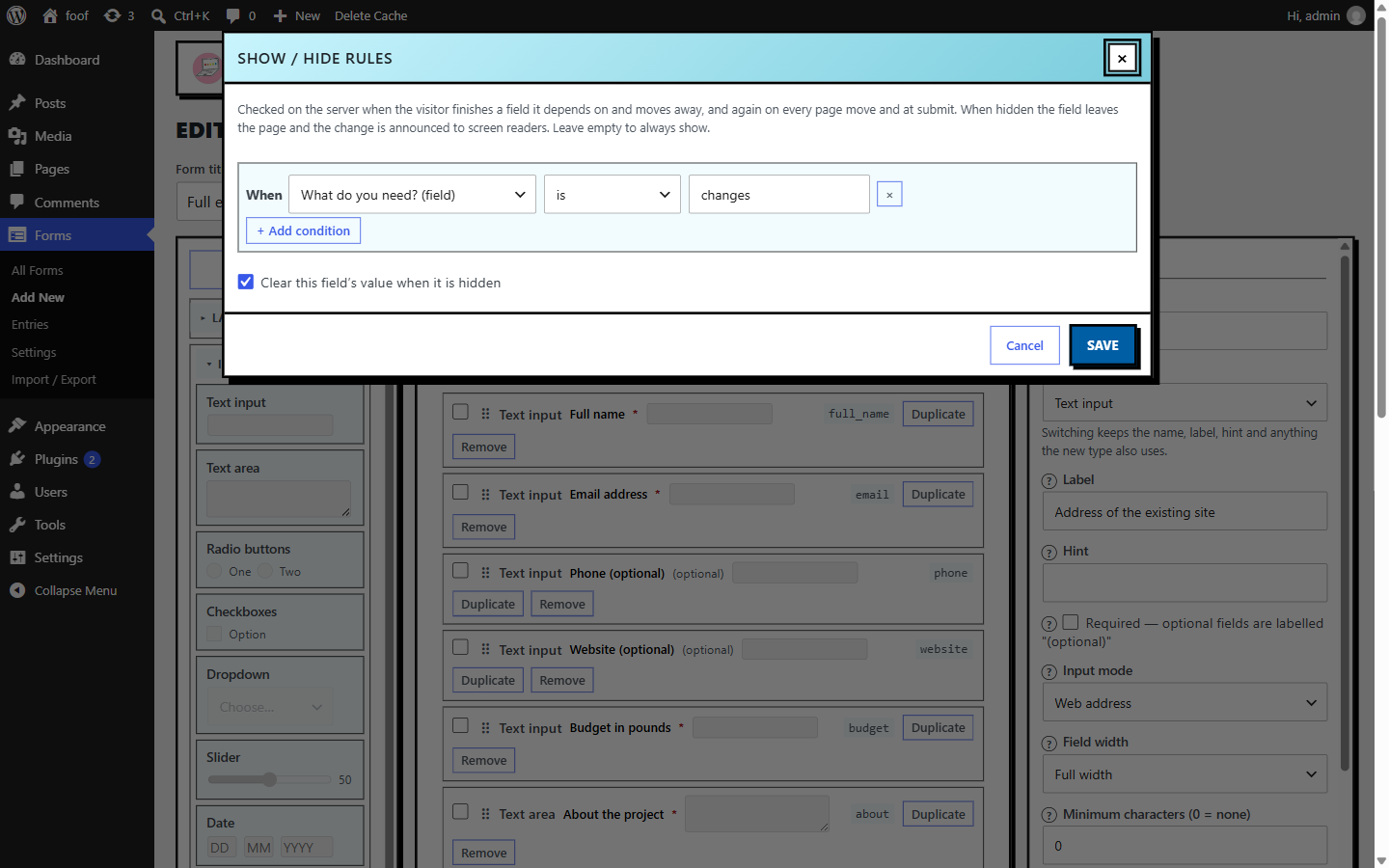
| Show / hide rules | Show the field only when earlier answers meet a condition. See the tutorial below. |
| Clear this field's value when it is hidden | When on, a hidden field's answer is dropped from the entry and emails. When off, the last answer is kept. |
| Page | Moves the field to the end of another page. Choosing a page also takes it out of any container. |
Only ask a question when it's relevant
- Add a Radio buttons field — Do you have a reference number? — with Yes and No.
- Add a Text field for the reference number below it.
- With the text field selected, open Show / hide rules in the options panel.
- Add a rule: Do you have a reference number? is yes.
- Tick Clear this field's value when it is hidden so a “No” never leaves a stray number in the entry.
The rule is checked on the server when the visitor finishes the field they've just answered and moves on, and again at each page step and on submit. Nothing about the rule is sent to the browser. A hidden field is not validated and, when the box is ticked, not stored.
Confirm a field #
The Must match another field setting on a Text field blocks submit unless it is typed identically to another field. Trailing spaces are ignored. It works for any pair — an email typed twice, a reference confirmed — not just email.
Add a “confirm email” box
- Add a Text field, Data Name email, Input mode Email, Required.
- Add another Text field below it — label Confirm email address, Input mode Email, Required.
- In the second field, set Must match another field to Email address.
- Fill in its “If it does not match the other field” error message, for example “This does not match the email address above.”
Pre-fill choices from the query string #
Turn on Pre-select from the query string on a radio, checkbox or dropdown field and each option gains a small query string match box. When the form loads, it looks through the query string (everything after the ?); if an option's match text appears anywhere in it — case-insensitive — that option is selected. Blank match means look for the option's stored value itself. The query string is captured once and kept with the form's draft, so the pre-select still works after moving to a later page. A real answer the visitor picks always wins.
The match text is only ever used to pick one of the field's own options; nothing from the query string is shown on the page or saved with the entry, so a crafted link can at most choose a legitimate answer.
Send people to the form with a team already chosen
- Add a Dropdown — Which team is this for? — with options Housing, Benefits, Council tax.
- Turn on Pre-select from the query string. In each option's query string match box put a short unique code — HOUS, BEN, CTAX.
- On the benefits landing page, link to the form as /contact/?team=BEN.
- Anyone arriving from that link sees Benefits already chosen; they can still change it.
Keep the codes distinctive so one can't accidentally appear inside another part of the URL.
Multi-page & conditional pages #
Add pages with the + tab. Each gets a Continue button automatically, and a Back button whenever there is a previous page. Give every page a title — it becomes the page heading a screen reader announces and names the step in the progress text.
A page can have its own show/hide rule, set on the Logic tab. A page whose rule fails is skipped entirely: its fields aren't shown, aren't required, and its email actions don't fire. The step count adjusts — a visitor who skips a page sees “Step 2 of 3”, not “of 4”.
Variables & calculations #
Both a computed variable (on the Logic tab) and a hidden field set to “a calculation” work from other answers. They never appear on the form and nothing about them is sent to the browser; use them in rules, tokens and email content. A variable is referenced as {var:key} in formulas and [key] in tokens.
The formula box #
Type a calculation left to right, no brackets, no operator precedence — what you type is the order it runs. Insert field and variable names from the chips.
{quantity} * {price} + 5
"Ref " & {order_no}
{start_date} + 7 workdays| In a formula | Means |
|---|---|
| {name} | A field's answer. {var:score} for a variable. |
| + - * / | Add, subtract, multiply, divide numbers. x also multiplies. |
| & | Join as text: "Order " & {ref}. |
| + N days | Move a date on. Also weeks, months, workdays (skips weekends), workweeks. A negative number goes back. |
| "text" | A literal piece of text. |
| today | The current date, as YYYY-MM-DD. |
For anything that needs a condition — “add 2 only when urgency is high” — switch to the step list under Advanced. Each step has an operator (set to, add, append text, add working days…), a value, and an optional only when condition.
Operators — conditions
| Operator | True when |
|---|---|
| is / is not | The value matches, or doesn't. |
| contains / does not contain | The text (or a ticked choice) includes the value. |
| starts with / ends with | The text begins or ends with the value. |
| > < ≥ ≤ | Number comparisons. |
| is empty / is not empty | The field has no answer, or has one. |
Working with dates #
The date maths in a formula, a date default, and the check against another date all read the same shapes: a date field's answer, today, an ISO date like 2026-06-10, or an expression like today + 20 workdays. Results come back as YYYY-MM-DD, which is what a token such as [date_due] prints.
Log the date received and work out a deadline
- Add a Hidden field, Data Name date_received. Set Value comes from to A calculation and put today in the formula.
- Add a second Hidden field, date_due, formula {date_received} + 20 workdays.
- In the acknowledgement email: “We received your request on [date_received] and will reply by [date_due].”
Stop a “to” date being before the “from” date
- Add two Date fields, date_from and date_to.
- On date_to, set Check against another date to date_from, and The rule to On or after that date.
- Fill in its “If it fails the check” message: “The end date must be on or after the start date.”
Tokens #
Tokens are placeholders in square brackets that get replaced with real values in email subjects, email bodies and the submit message.
| Token | Becomes |
|---|---|
| [data-name] | The visitor's answer to that field, using its Data Name. |
| [variable-name] | A computed variable's value. |
| [reference] | The submission's unique reference, e.g. HP-000042. Emails and the submit message only. The number only ever counts up, so a reference is never reused — even after an entry is deleted. |
| [all-fields] | Every visible answer as a tidy list, grouped by page. |
| [all-data] | Like [all-fields] but also includes hidden fields and variables. |
Emails #
Use one Email action per recipient group. A common pattern is one email to the visitor and one to your team.
One email to the customer, one to your team
- Add an Email action. In To, click the chip for your Email address field so it goes to whoever filled the form in. Add your own address in CC.
- Write a short confirmation: thank them, include [reference], don't dump every answer.
- Add a second Email action. Put your team inbox in To.
- Write the internal version: [all-fields] for the full picture, plus [reference] in the subject.
- If the form takes file uploads, turn Attach files uploaded through the form off on the customer email so only your team receives them.
Under Settings → Email appearance you can add a block of CSS, a header and a footer that wrap every email the plugin sends — a logo at the top, an address or unsubscribe note at the bottom. Leave them blank to send the plain message. Many email clients ignore external CSS, so for a reliable look put inline style attributes in the header and footer HTML.
An email leaves out any question with no answer, so the body only ever shows what was filled in. The check-your-answers page is the opposite — it keeps blank questions so the visitor can see what they skipped.
Add as many email actions as you need — there is no limit in the plugin, and every one on an in-scope page fires on submit. Delivery, though, depends on your site's mail setup, not the plugin. Mail is sent with WordPress's own wp_mail(); on its own that uses the web server's mail program, which often lands in spam because the sending domain is not properly authenticated.
You can also ask internal recipients to add the site's From address to their safe-senders list — that helps their inbox, but it does nothing for the person who filled in the form and cannot rescue mail a receiving server rejects outright.
Entries #
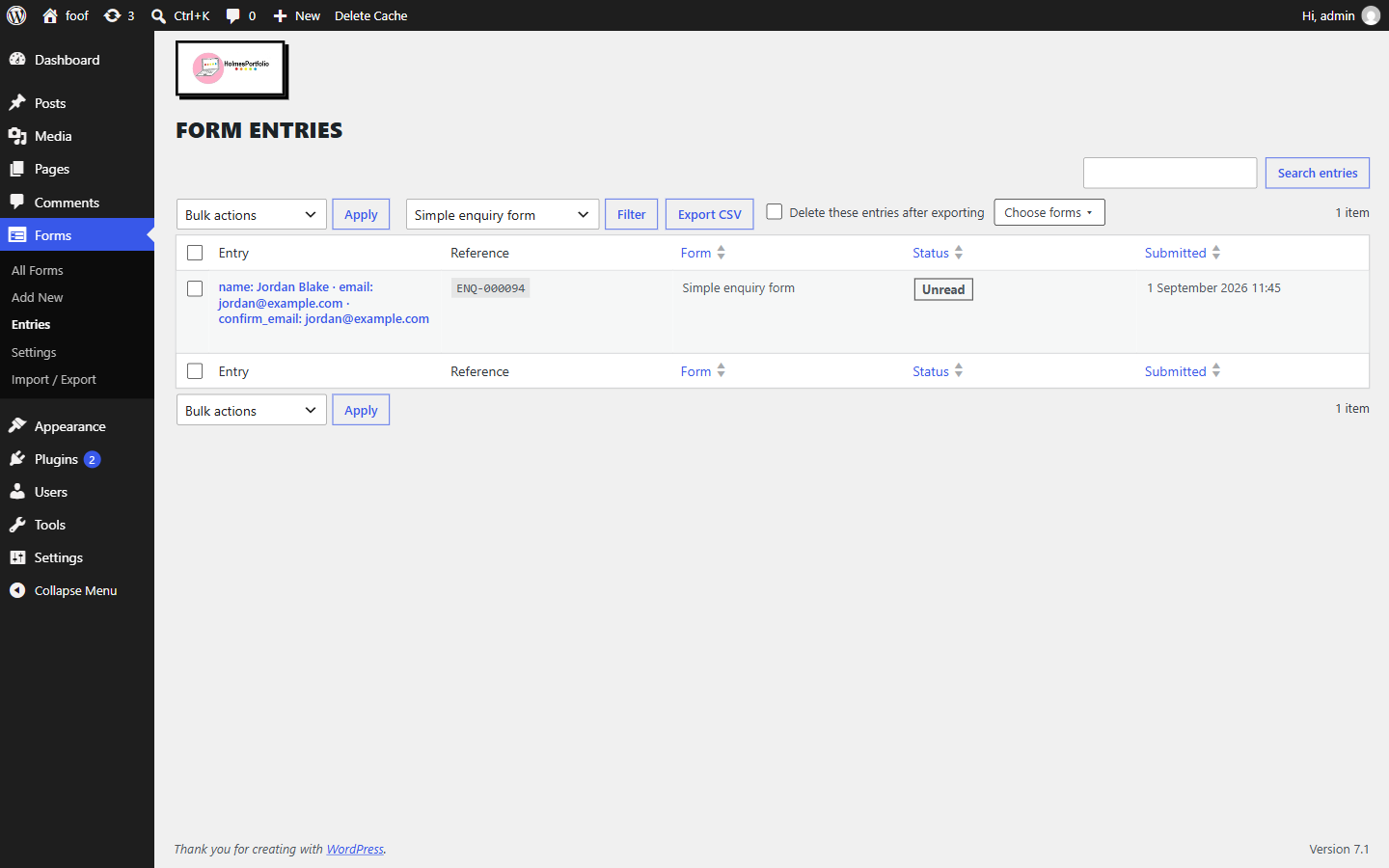
Forms → Entries lists every stored submission. Filter and sort by form. Open one to see all its answers and its reference.
Export to CSV from the toolbar or the bulk actions. The export is one file per form (zipped when you pick several), with the form name in column A and the reference in column B, so a spreadsheet clearly belongs to one form. There is a column for every question in the form, whether or not anyone answered it; an unanswered cell is simply empty. Tick Delete these entries after exporting to clear them straight after the download — you'll be asked to confirm, and only the rows in that export are removed.
Settings #
| Setting | What it controls |
|---|---|
| Default style mode | GOV.UK (default), Bootstrap, or None — inherit your theme's styling. Each mode only loads its own stylesheet and only tags the form with its own class when it is the one selected. |
| Global custom CSS | Extra CSS applied to every form, scoped to the form so it can't reach the rest of the page. The plugin adds no !important to form styling, so your rules win. |
| Email appearance | CSS, a header and a footer added to every email. See Emails. |
| Store submissions | Save every form's entries, choose per form, or never save any. |
| Delete entries after (days) | Retention. 365 by default; 0 keeps them indefinitely. A daily job removes older ones. |
| Reference prefix | The letters before the number in a reference. HP by default. Changing it applies to new submissions only — existing references never change. |
| Additional challenge | None (recommended), Cloudflare Turnstile, or Google reCAPTCHA. See Spam protection. |
Accessibility check #
The button at the bottom of the builder shows a running count of problems in the build. Click it for the list, grouped as Errors, Warnings and Notes. Each finding says where it is, what's wrong and why it matters, and how to fix it, with a Go to field link. A count also appears against each form on the Forms list.
It reads the structure only — labels, legends, choices, keys, error messages, autofill. It's a starting point, not a full audit: colour contrast, text zoom, reading age, focus visibility and whether the wording actually makes sense still need a person. The panel lists exactly what it can't check, and links to the W3C guide to accessible forms. It never blocks saving.
Import / Export #
Forms → Import / Export moves forms, the field-preset library and the Settings between sites as a single JSON file. Choose which forms to include; the page shows each one's size and warns if the file is too large to upload elsewhere. Submissions are never included. Up to 250 forms per file.
Spam protection #
Three checks run on every form with no setup: a hidden honeypot field that only a bot fills, a signed timing check (a submit under three seconds or older than a day is rejected), and a per-IP rate limit on submits. Page navigation has its own looser per-IP ceiling. Spam these catch is dropped — not emailed, not stored.
GOV.UK and the NCSC advise against CAPTCHA, so the Additional challenge setting is None by default. Turn on Turnstile or reCAPTCHA only if you have a specific problem; both add a visible challenge and send the visitor's token and IP to that provider.
The forms you start with #
A fresh install creates four forms so there is something working to open, copy or drop on a page. Every email recipient defaults to the site admin address; swap it per form. None of them are set in stone — edit or delete them freely.
| Form | What it shows |
|---|---|
| Simple enquiry form | Two pages with a check-your-answers step. Name, email with a confirm-email box, phone, message. One email to the team. |
| Freedom of Information request | Records the date received and works out the statutory deadline as date_received + 20 workdays. The acknowledgement email quotes the deadline and points to an internal review and the ICO. |
| Request your personal information (Subject Access Request) | The data-protection counterpart. Deadline is date_received + 1 month, with a note about the extension and identity checks. |
| Make a complaint | What happened, when, and the outcome wanted. Works out an acknowledge by and a full response by date. |
The Pro add-on #
HolmesPortfolio Forms Pro is a separate plugin you install alongside this one. It does not replace anything — switch it off and your forms carry on with the free feature set. A licence key entered under Forms → Pro licence unlocks updates and support; the check is soft and never disables a feature you have set up.
| Feature | What it does |
|---|---|
| Webhooks | POST every submission to another system as JSON. Set a secret and the request carries an X-HPF-Signature HMAC. Failed deliveries retry twice. Set the endpoints under Forms → Webhooks. |
| Mailchimp & Brevo | Add the submitter to a list — but only when a consent checkbox you nominate on the form is ticked. Their email and the fields you map are sent to the provider; nothing else. Under Forms → Email marketing. |
| Submission PDF | A PDF link on every entry, and an optional copy attached to that form's notification emails. |
| Save and resume | The visitor emails themselves a link and finishes a long form later. The link expires; old drafts are pruned. Turned on per form under Forms → Save & resume. |
| Submission workflow | A status per entry (from a list you define under Forms → Workflow statuses), internal notes, a log of the emails the entry sent, and editing the stored answers. The retention prune keeps anything not marked closed. |
| Repeatable groups | Adds the Repeatable option to the container field. See that section. |
| Signature field | A draw-to-sign box. The image is attached to the form's emails as a PNG and shown on the entry. |
| Payment field | A “Payment” question. The Manual / bank-transfer provider shows an amount and instructions and records a reference; Stripe and PayPal are planned. |
For developers
Technical details
Extra detail for anyone integrating with the plugin or reviewing how it handles data.
Rendering
Shortcode [hpf_form id="123"], or the HolmesPortfolio Form block. Both call one renderer, so output is identical.
REST endpoints
| Route | Purpose |
|---|---|
| GET /wp-json/hpf/v1/token | Issues a fresh nonce for a cached page. |
| POST /wp-json/hpf/v1/step | Moves between pages; re-resolves conditional fields. Own per-IP request ceiling. |
| POST /wp-json/hpf/v1/submit | Validates, stores, and sends the emails. Honeypot, timing token and submit rate limit apply here. |
The endpoints are open (permission_callback returns true); protection is in each handler. Every request needs a valid signed draft token, so a page can sit behind a full-page cache without a stale nonce breaking it. Behind a proxy or CDN, define HPF_TRUST_FORWARDED_FOR as true so the rate limits key on the forwarded client IP — only do this when the proxy overwrites X-Forwarded-For.
Server-side only
Hidden fields, computed variables and email actions never reach the browser — no markup, no config, no values. Their effects still show: a hidden field or the pre-select from the query string option can set a visible field, and any of them can appear in emails, the answers summary and the submit message through [tokens]. All rule evaluation, variable computation and formula parsing happen on the server; rules are stored as plain data, nothing executable. The front end asks the server to re-resolve the current page when a field a rule depends on changes.
Storage
Entries live in a dedicated table, {prefix}hpf_submissions, not the posts table. Columns: id, form_id, created (UTC), status, data (JSON), context, user_agent, user_id. Drafts are transients with a 24-hour lifetime. Uploaded files are confirmed as genuine request uploads, checked by real content type against the field's accepted list, then read from the PHP temp directory straight into the mail and never written elsewhere. CSV export prefixes any cell that could be read as a spreadsheet formula.
Extension points
| Hook | When |
|---|---|
| hpf_submission_created (action) | After a genuine submission is stored and mailed. Args: submission id, form object, {fields, variables, hidden}. Not fired when storage is off for the form. |
| hpf_submission_complete (action) | Every genuine, non-spam submission, whether or not storage is on. Args: form object, {fields, variables, hidden, pages, id, reference}. This is the general “a form was submitted” signal. |
| hpf_submission_result (filter) | The success payload, before it is returned. Args: { ok, submission_id, reference, message }, form object, { fields, variables, hidden, pages, id }. Append to message, or set redirect to send the visitor onward (the front end forwards there after showing the confirmation). Not fired for spam. |
| hpf_email_action_failed (action) | An email action's wp_mail() returned false. Args: action config, resolved recipients, form object. The other actions and the stored entry are unaffected. |
| hpf_email_sent (action) | After each email action is handed to wp_mail(), pass or fail. Args: stored entry id (0 if not stored), recipients, subject, the wp_mail() result, form object, action config. |
| hpf_email_attachments (filter) | The files attached to one email action, as a name => path map. Args: the map, action config, form object, {fields, variables, hidden, pages}. Add a generated file such as a PDF or a signature image. |
| hpf_attachment_notice (filter) | The safe-handling line added to an email that carries uploads. Args: the text, the file count. Return an empty string to remove it. |
| hpf_seed_draft (filter) | Pre-fill the fresh draft when a form is first rendered. Return {answers, start_page}. Used by save-and-resume to reopen a form where the visitor left off. |
| hpf_form_actions_html (filter) | Markup placed next to the Back / Continue buttons. Args: the current HTML, form object, in-scope pages. |
| hpf_entry_row_actions (filter) | The links under an entry's row on the Entries screen. Args: the actions map, the entry row. |
| hpf_entry_columns / hpf_entry_column_value (filters) | Add a column to the Entries table and supply its cell. Args: the columns map; then value, column key, entry row. |
| hpf_entry_detail (action) | After the read-only detail table on a single entry. Args: the decoded row, the entry id. |
| hpf_entry_value_html (filter) | The HTML for one stored value in the entry detail table. Args: the default (escaped) HTML, the field key, the value. Return safe HTML — used to show a signature image. |
| hpf_export_extra_columns / hpf_export_extra_cells (filters) | Extra columns on the CSV export, after the built-in ones. Args: the columns map; then the cells map, the entry row. |
| hpf_prune_keep_ids (filter) | Submission ids to keep regardless of the retention window. Args: the ids array, the cut-off datetime. |
| hpf_repeatable_unlocked (filter) | Return true to expose the Repeatable option on the container field. |
New field types are added with HP_Forms_Components::register_type() on the init hook: give it a slug, a label, a group, and callbacks for render / validate / sanitise / format, plus an optional inspector schema. The Pro add-on's Payment and Signature fields are registered this way, with no change to the free plugin.
Email sending
Every email action is sent with core's wp_mail() — one call per action, on the request that handles the submit. The plugin sets no limit on the number of actions or recipients; whatever bounds apply come from wp_mail()'s transport, the host's outbound-mail quota, and the receiving side's spam handling. A failed send fires hpf_email_action_failed and is logged, but does not stop the other actions or the stored entry. Delivery is configured site-wide, not here: any SMTP plugin replaces wp_mail() for the whole site — pointing it at the organisation's own mail host or a transactional provider — and every email action follows it with no integration on the plugin's part.
Privacy
Registers with Tools → Export Personal Data and Erase Personal Data, matched on any email field in the entry. Retention is enforced by a daily cron job. By default nothing about a submission leaves the server except the emails you configure; Turnstile / reCAPTCHA are the only optional exceptions.
Uninstall
Deactivating the plugin changes nothing. Deleting it drops the submissions table, removes the plugin's options and the scheduled job, and deletes every form and its meta.
Style modes
GOV.UK and Bootstrap load their stylesheet from the plugin's assets/css/vendor/ folder only when that mode is selected. In None mode neither loads; the plugin adds no button styling and the buttons carry the standard wp-element-button class, so they inherit the theme.